Quick answer
To clean a doorbell camera lens, brush off loose grit first, then wipe gently with a clean, dry microfiber cloth in small circles; for a stubborn spot, use a barely damp corner with plain water and dry it right away. Never spray the camera, skip glass cleaner and paper towels, and clear spider webs around the unit to stop night-time glare. Below you will find a one-page care card to print or screenshot, covering daily use, the weekly wipe, charging and winter care for a no-WiFi kit like the Vital Smart Door Home.
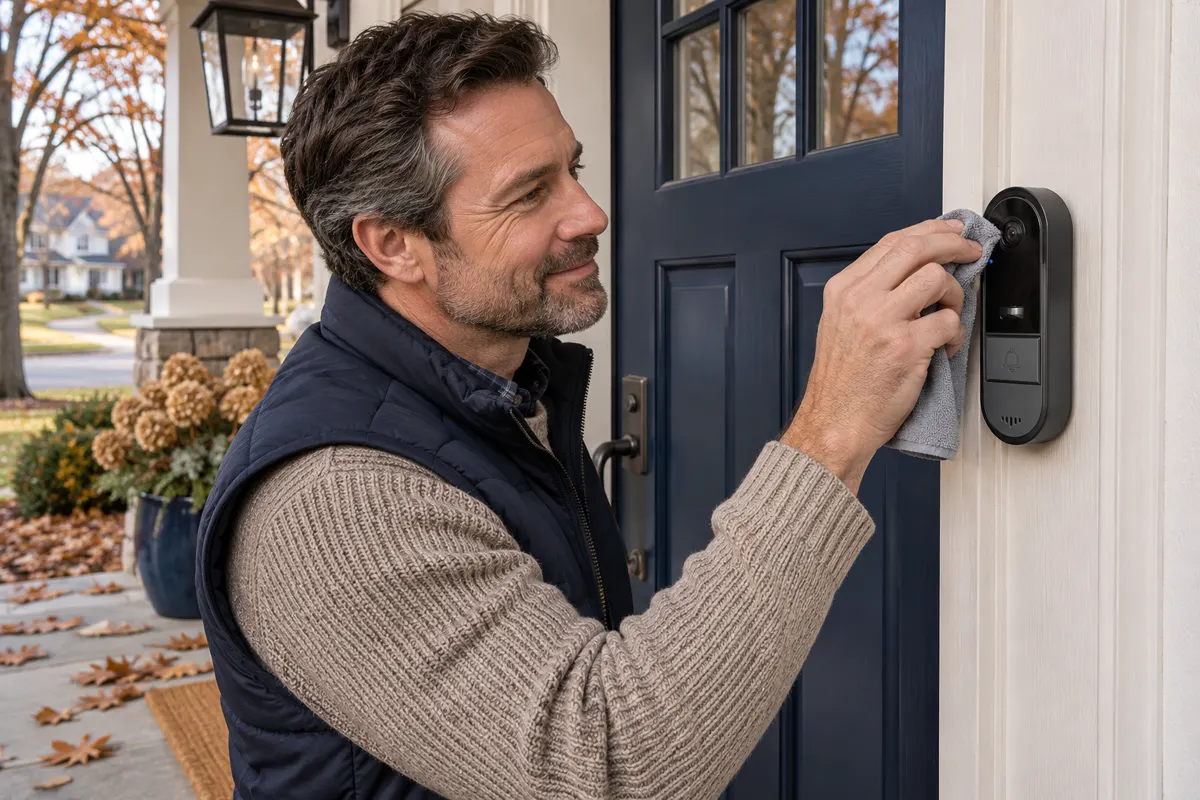
A video doorbell spends every day outside: pollen in spring, rain and dust in summer, falling leaves and spider webs in autumn, frost and road grime in winter. Sooner or later the picture on your monitor looks hazy, or a bright halo appears at night, and the question is the same: how do you clean the lens without scratching it?
This pocket guide answers that in a few steps, then gives you a one-page care card you can print and stick inside a kitchen cabinet or save on your phone. It covers the whole kit, the outdoor camera and the indoor monitor, so the system keeps working the way it did on day one. If your doorbell is brand new, our first-day setup guide is the place to start.
The one-page video doorbell care card
Print this table or take a screenshot. It is the whole routine in one place; each line is explained below.
| When | What to do | Takes |
|---|---|---|
| Every day | Answer from the monitor before opening the door; keep the monitor in the room you use most | 0 minutes |
| Every week | Dry microfiber wipe of the lens and the area around it; quick look for webs and leaves | 10 seconds |
| Every week | Wipe the monitor screen; check both battery levels | 1 minute |
| On your charging day | Charge indoors at room temperature; test the bell and picture before remounting | 2 minutes |
| Every month | Check the mount is firm; brush dust off the button and speaker grille | 2 minutes |
| After storms or pollen | Dry wipe; if spotted, barely damp corner of the cloth, then dry | 1 minute |
| In winter | Charge a little more often; let a frosty unit warm up indoors before charging | As needed |
| Never | Spray the camera; use glass cleaner, paper towels or abrasive pads; charge on a soft surface | — |
How to clean a doorbell camera lens, step by step
- Bring the right cloth. A clean, dry microfiber cloth, the kind sold for glasses or phone screens. Paper towels, tissues and old rags can leave lint and fine scratches.
- Remove loose grit first. Blow gently or use a soft, dry brush. Wiping over sand or grit is how most lens scratches happen.
- Wipe in small circles. Light pressure, from the center outward. Fold the cloth to a clean side if it picks up dirt.
- Stubborn spot? Barely damp, never wet. Dampen one corner of the cloth with a little plain water, wipe the spot and dry the lens immediately with a dry part of the cloth. Do not let water run into seams.
- Clean around the lens too. Smears and webs next to the lens reflect the infrared light used for night vision and can cause a white haze after dark.
- Check the picture. Press the bell and look at the monitor. A sharp image means you are done.
Several camera makers, including Google in its guide to cleaning Nest devices, advise against household glass cleaners and harsh chemicals on device surfaces. When in doubt, the dry cloth is the safe choice, and your own device manual always comes first.
What causes a blurry or hazy doorbell picture?
| What you see | Likely cause | Quick fix |
|---|---|---|
| Soft, hazy picture in daylight | Fingerprint, pollen or dust on the lens | Dry microfiber wipe |
| White glow or halo at night | Spider web or smear near the lens reflecting infrared light | Clear webs, wipe around the lens |
| Spots that stay after a dry wipe | Dried water or sprinkler marks | Barely damp corner, then dry |
| Foggy image on cold mornings | Condensation | Wait for it to clear; do not wipe hard or heat it |
| Dark or cut-off view | Leaves, snow or a shifted mount | Clear the area; check the mount is firm |
Caring for the indoor monitor
The indoor monitor is the part of a no-WiFi kit you touch most, so it collects fingerprints. Switch it off, wipe the screen with a dry microfiber cloth, and for smudges use a cloth that is only barely damp with plain water. Keep liquid away from the buttons, charging port and speaker openings. Give it one fixed home where you charge it, and it will always be ready when the bell rings. We explain the best moment to plug in both units in when to charge a battery video doorbell.
Winter and weather care
- Sheltered is better. The maker does not publish a weather rating, so mounting the camera under a porch roof or an overhang, out of direct rain and wind, is a sensible precaution.
- Leave frost alone. Do not scrape ice off the lens or point a hair dryer at it. Let it clear, or bring the unit inside to warm up gently.
- Charge indoors at room temperature. Cold batteries hold less charge, so expect a slightly shorter interval in winter.
- Clear the view after snow. Brush snow and leaves away from the front of the camera with a soft brush, not a shovel.
Quick fixes before you worry
- No picture on the monitor? Check both battery levels first, then make sure both units are switched on.
- Bell rings late or not at all? Charge both units fully and test with the camera at the door and the monitor in its usual room.
- Picture drops in one room? Thick walls and metal can weaken any wireless link; try the monitor in another spot. Our FHSS explainer shows why the private link usually stays steady.
Our recommendation: the Vital Smart Door Home
If you want a video doorbell whose whole care routine fits on one page, the Vital Smart Door Home is the kit we recommend. There is no app to update, no account password to change and no WiFi to troubleshoot: you wipe the lens, charge two units and get on with your day. It is the simplest way we know to have a camera at the door that just keeps working.
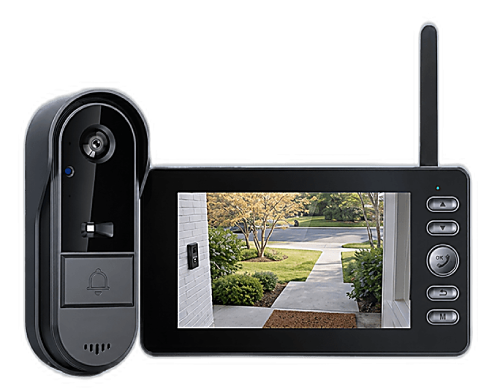
- Ready out of the box: charge both units, switch on, and they pair automatically over FHSS 2.4G. No router, no app, no account.
- Everything you need at the door: live video, two-way audio, motion detection and infrared night vision on a monitor you can carry from room to room.
- Easy upkeep: a rechargeable, fully wireless camera that mounts with adhesive or screws, so it comes down easily for charging and goes back up in seconds.
- Private and outage-proof: nothing connects to the internet, so there is no online account to hack and nothing to go offline when the WiFi does.
- No monthly fee: pay once, with an optional SD card at checkout if you want recordings.
Our full review scores it 4.6/5. Current pricing on the official site: 1 unit US$99.99 (regular US$222.20), or the 2-pack at US$89.99 each (US$179.98 total). Orders ship from New Jersey within 48 business hours to the USA and Canada, and every purchase is covered by a 30-day money-back guarantee.
Want more background first? Start on our Vital Smart Door Home overview.
Frequently asked questions
How do you clean a doorbell camera lens?
Brush or blow away loose dust and grit first, then wipe the lens gently with a clean, dry microfiber cloth in small circles. For a stubborn spot, use a barely damp corner of the cloth with plain water and dry the lens right away. Never spray anything directly onto the camera.
Can I use glass cleaner or alcohol on a doorbell camera?
It is safer not to. Several camera makers advise against household glass cleaners and harsh chemicals on lenses, because they can damage coatings or leave residue that causes glare at night. A dry microfiber cloth, and plain water for stubborn spots, is enough for most lenses. Always follow your own device's manual.
Why is my doorbell camera blurry or hazy?
The usual causes are a fingerprint, pollen, dust or a dried water spot on the lens, condensation on cold mornings, or a spider web near the camera. A gentle wipe fixes most of them. If the picture is blurry only at night, check for cobwebs or smears around the lens, which reflect the infrared light back into the camera.
How often should I clean my video doorbell?
A quick dry wipe once a week takes seconds and keeps the picture sharp, plus a check after storms, pollen season or when the image looks hazy. In fall, also look for spider webs around the unit, since they cause most night-time glare.
How do I clean the indoor monitor screen?
Switch it off, then wipe the screen with a dry microfiber cloth. For fingerprints, use a cloth that is barely damp with plain water and dry it right away. Keep liquid away from the buttons, charging port and speaker openings.
How much does the Vital Smart Door Home cost?
On the official site, 1 unit is US$99.99 and the 2-pack is US$89.99 each (US$179.98 total), with no monthly fee, shipping to the USA and Canada and a 30-day money-back guarantee.